Reference
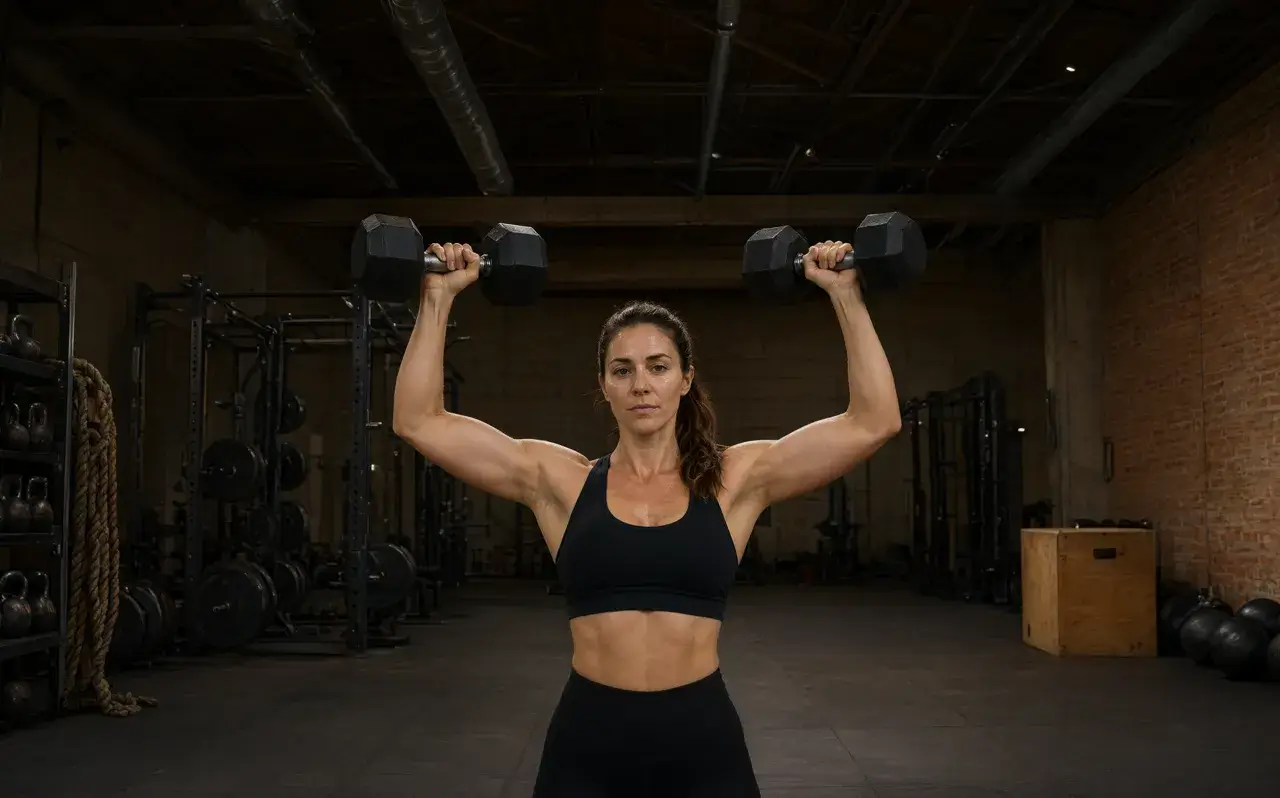
Prompt
@Image 1 lowers the dumbbells to her shoulders, then presses them back up. Keep her face and the gym.

Give your ideas a little motion
Start with an image, describe the movement, and explore your own creative direction.
Reference to video AI is for more than one still, or for a mix of image, video, and audio. Upload them, then type @Image, @Video, or @Audio in the prompt so the model uses those files instead of inventing a face or a product. Image to video is the simpler job when you only have one picture. A free attempt, when the model has one, shows on the button before you spend credits.
@Image 1 lowers the dumbbells to her shoulders, then presses them back up. Keep her face and the gym.
Referencing a video, or a set of pictures, is mostly the @ mark. The model still needs a sentence for the action and the camera.
Upload the person, the object, and the clip. AI reference to video keeps that look while the shot moves. A picture-to-video result is only as faithful as the files you attached.
Add References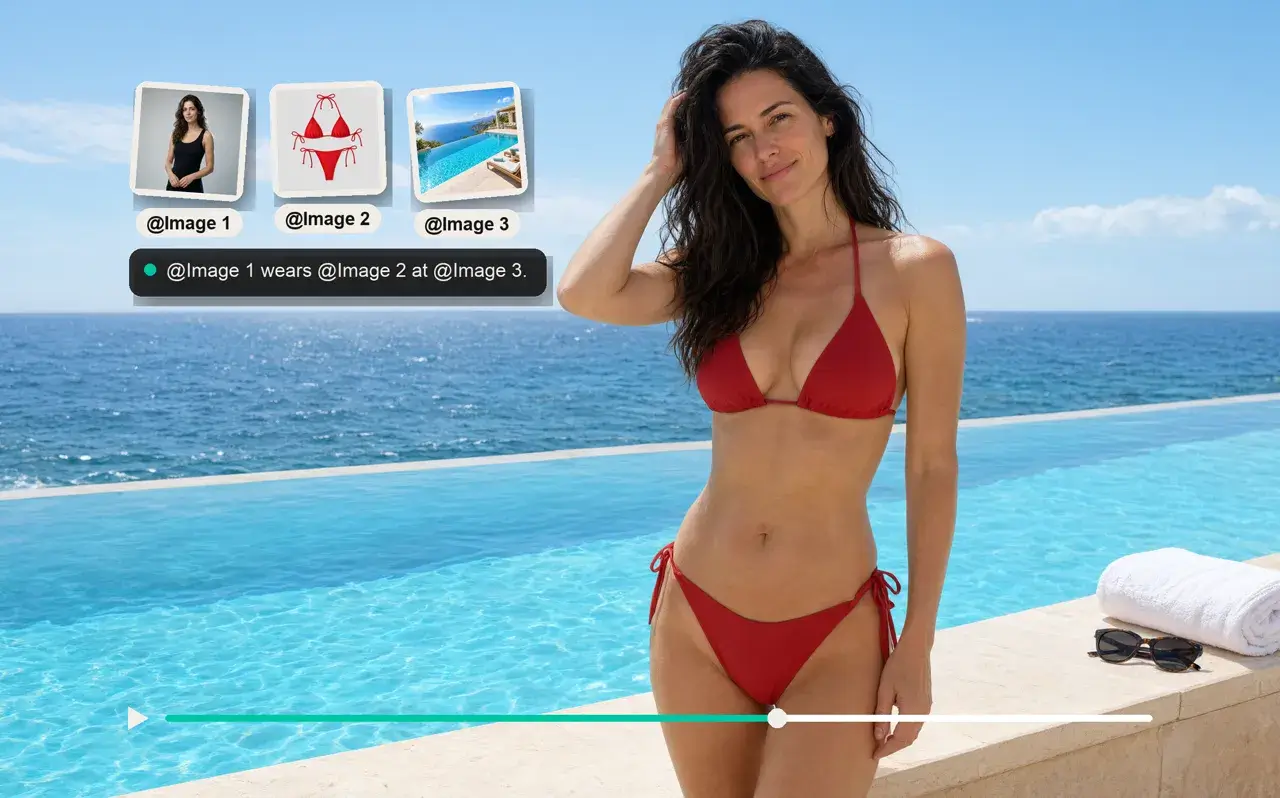
Write @Image 1 and @Image 2 instead of describing a face from memory. The same mark works for @Video and @Audio. Pic to video AI on this page still needs the upload. It does not guess the subject.
Write the @ Prompt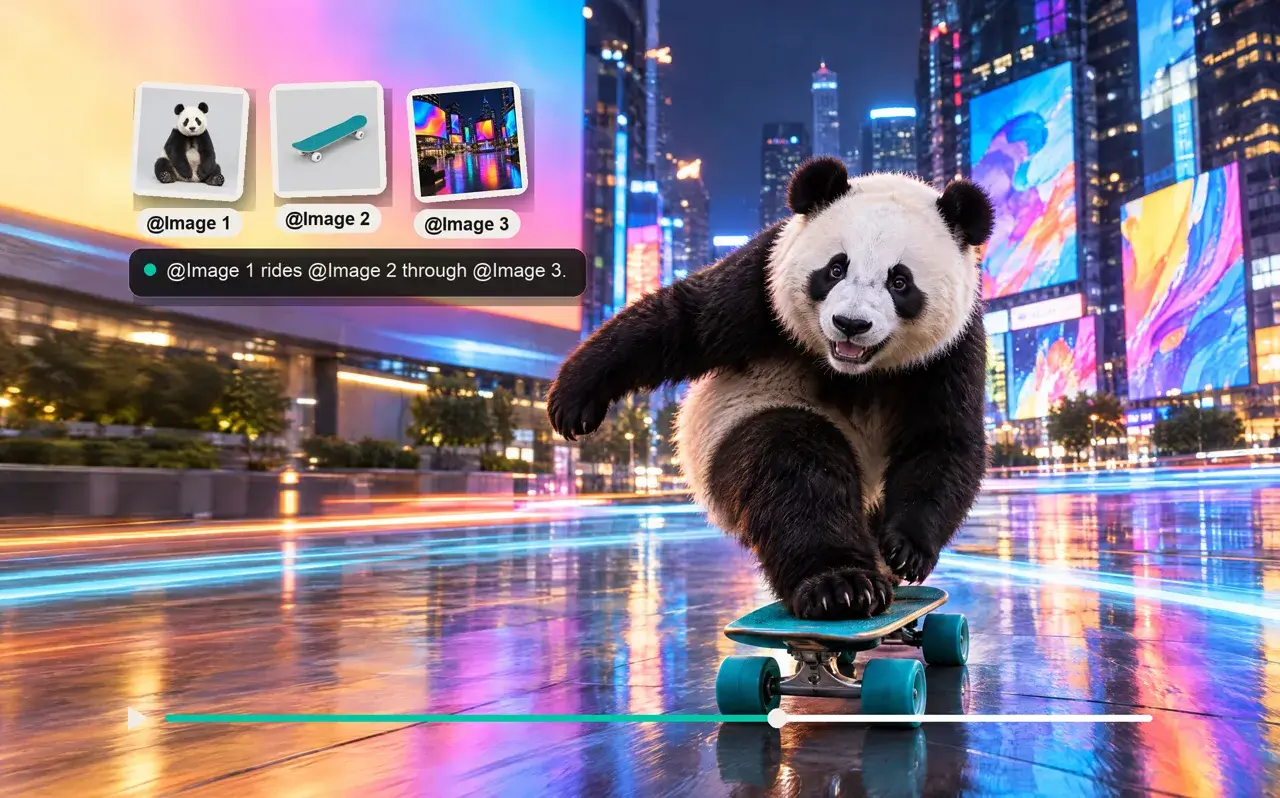
Length, resolution, and output count come from the model you picked. A free attempt, when that model has one, is marked before you generate.
Check the Settings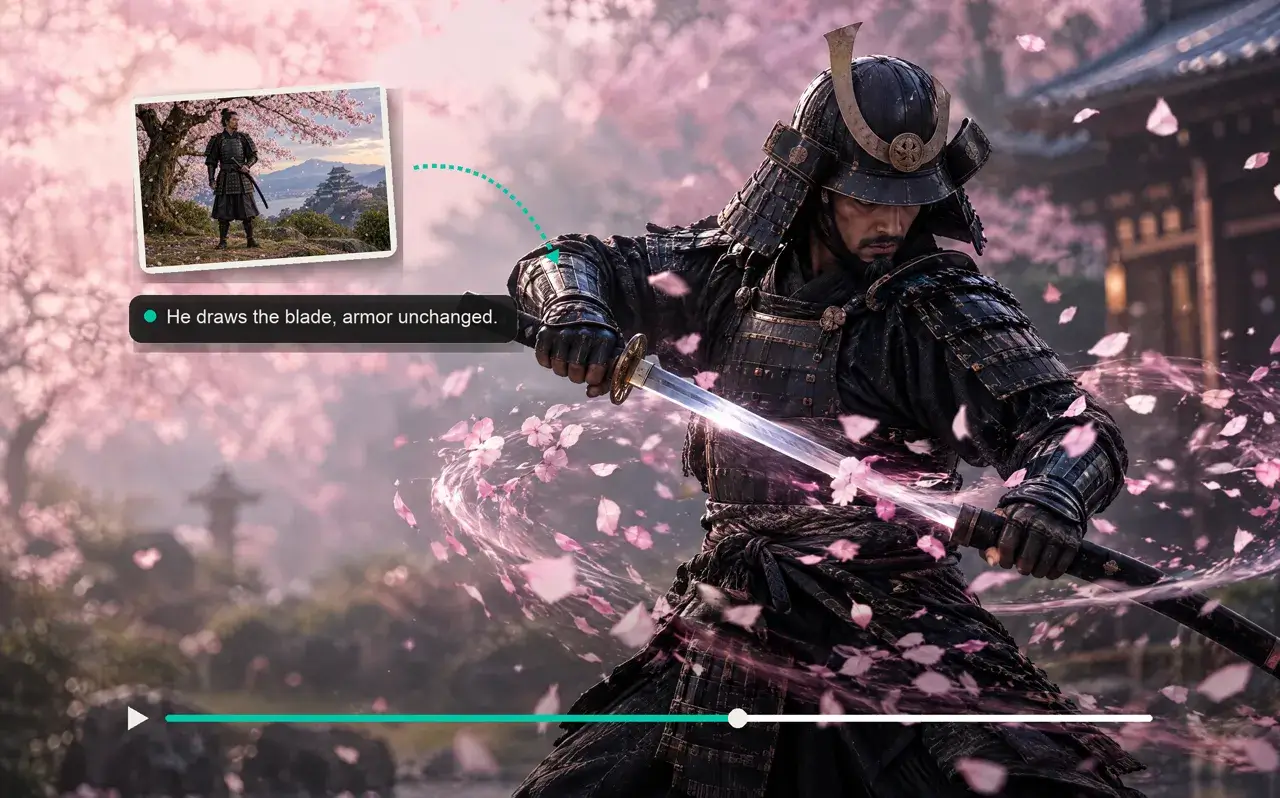
Use this page when the person, the product, or the look has to survive the motion.
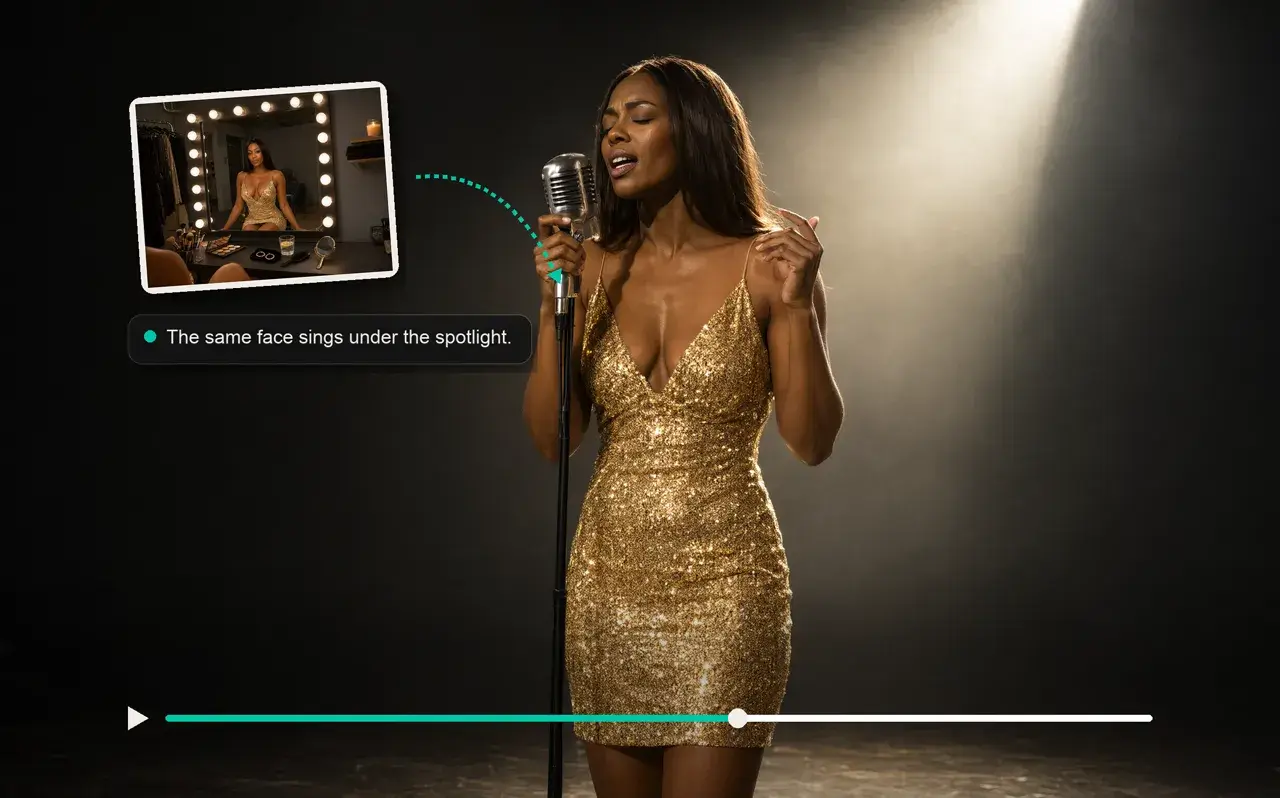
Use a portrait as @Image 1, then put her on a stage, add a turn, or a calm push. The AI video creator follows that face instead of casting someone new.
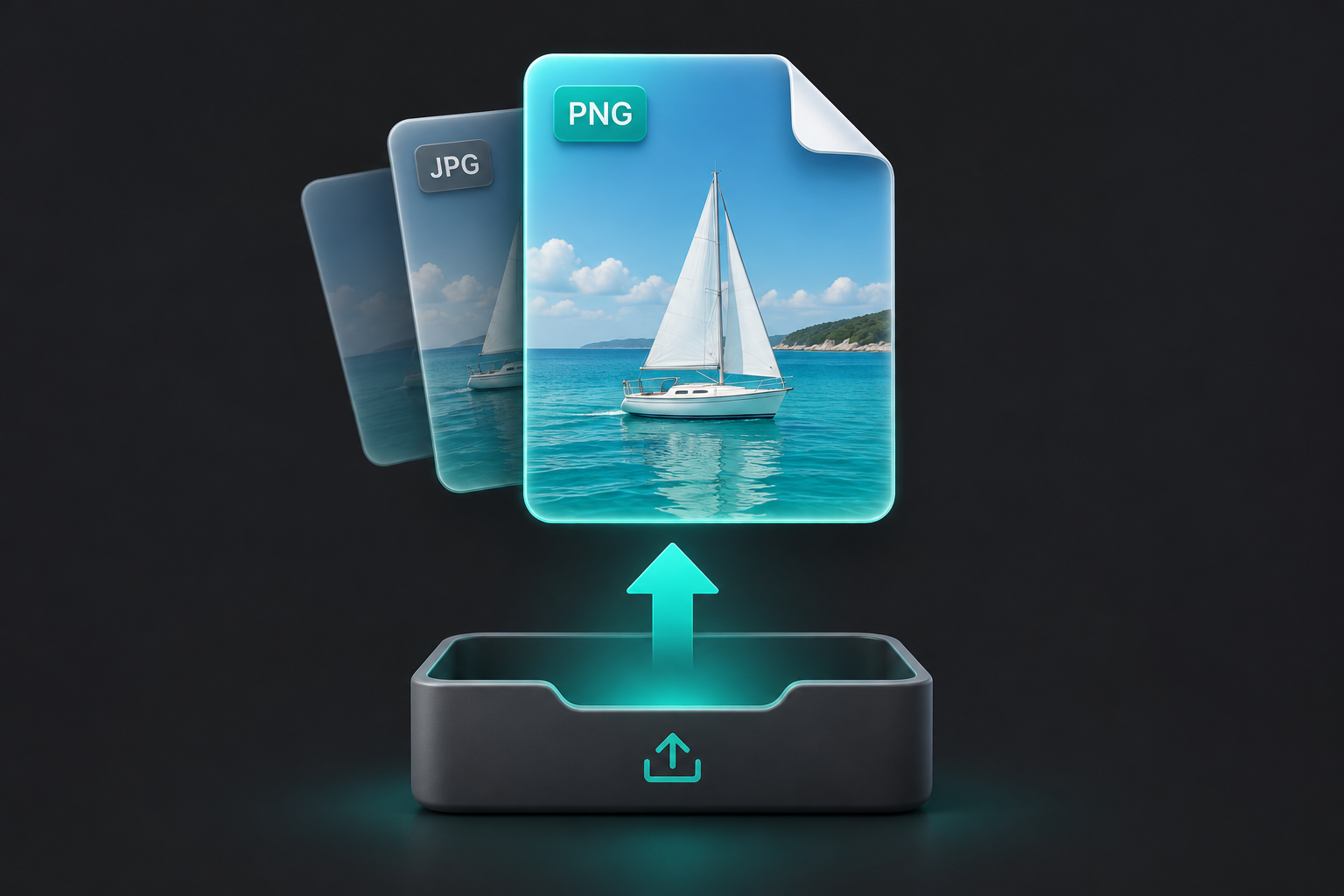
The person, the product, a style frame, or a short clip. Add each file before you write the sentence.
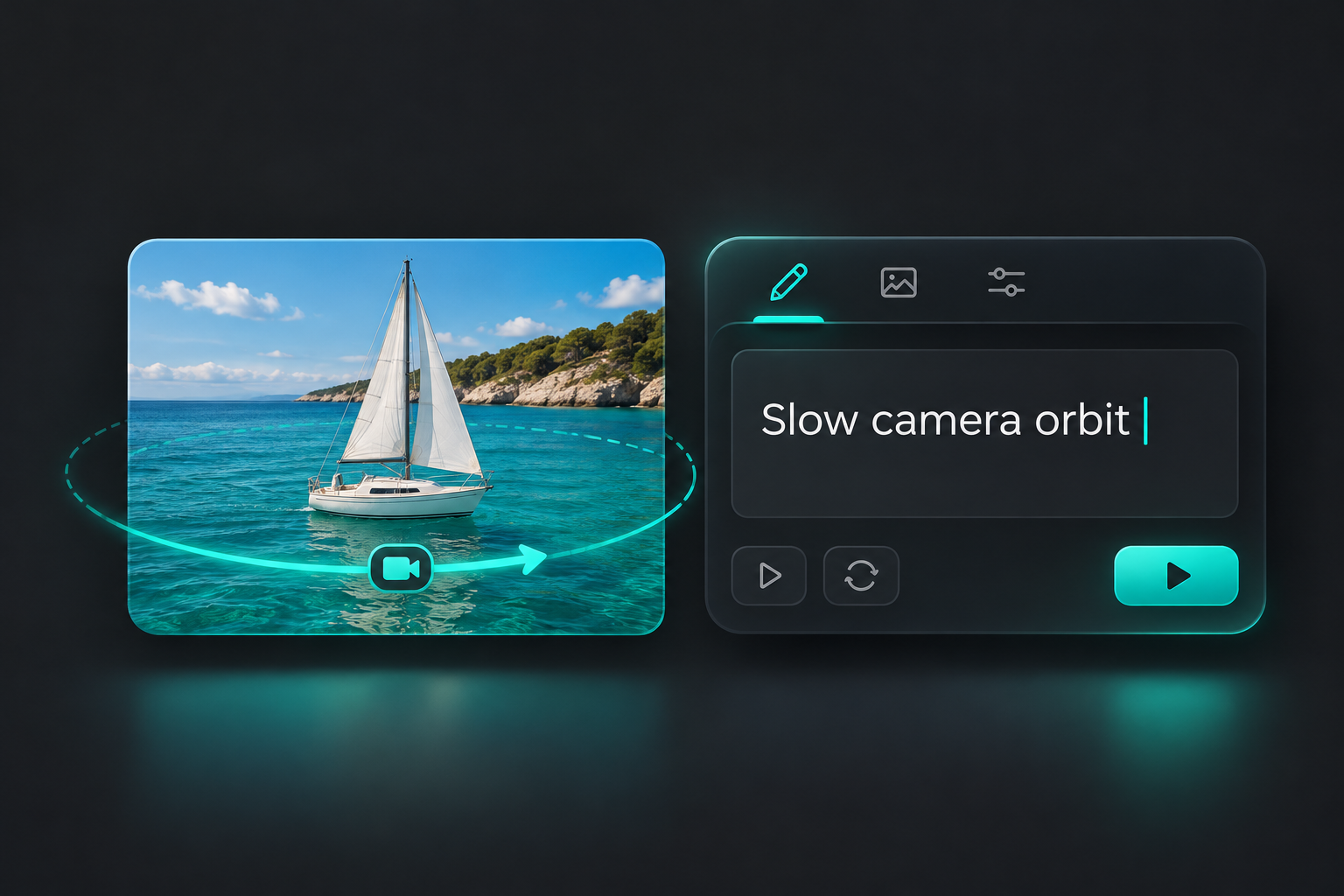
Say what @Image 1 must keep, and what the camera does. This is also how to reference a video: @Video 1 is the shot you want followed.
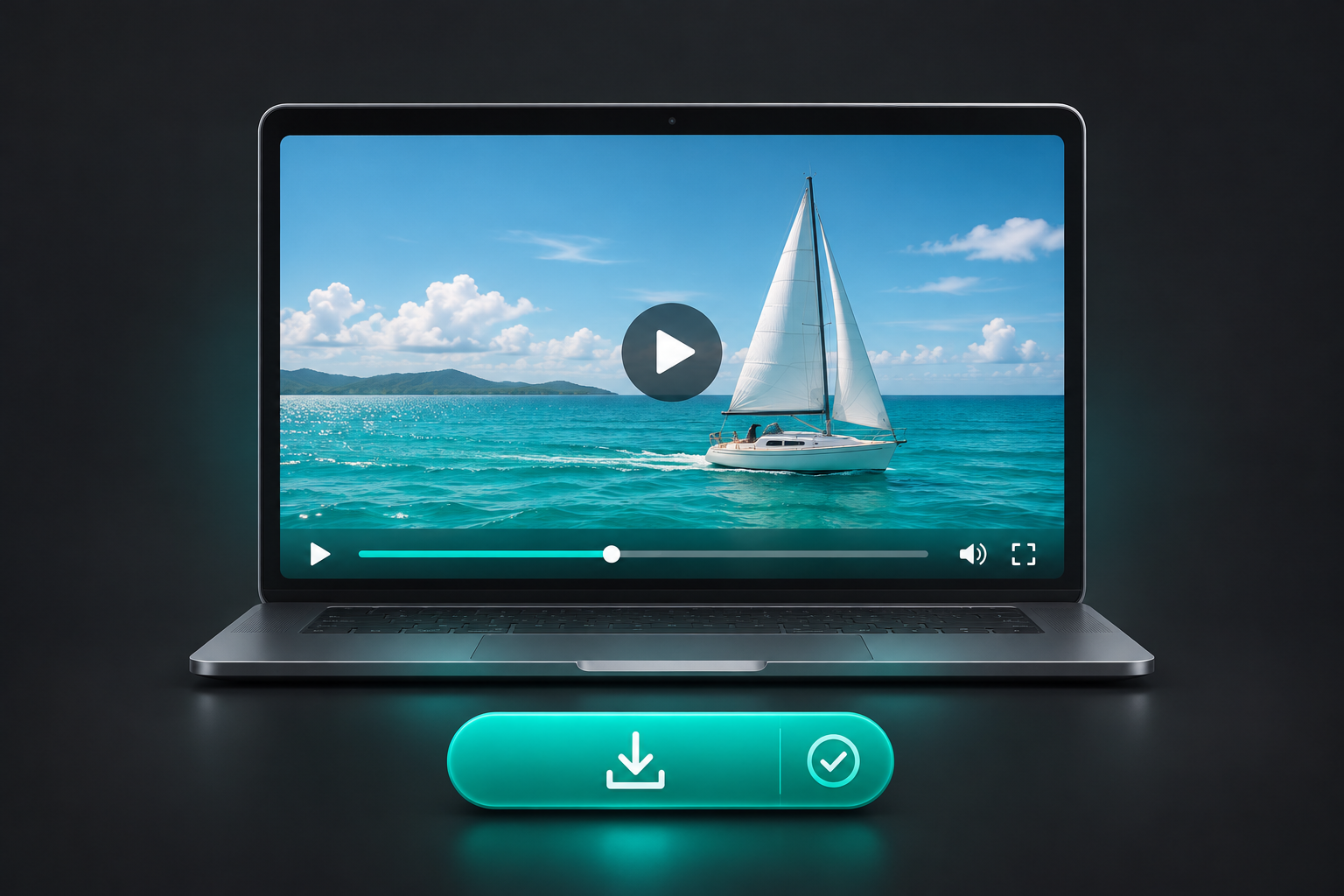
Watch the result next to the uploads. If a face drifted, point at the file again and run it once more.
How to reference to video was the phrase I had typed. I uploaded two photos, wrote @Image, and AI picture to video kept her face.
I uploaded the bottle and wrote @Image 1, do not redraw the label. An artificial intelligence animation generator still needed that file. A style name would have invented a new bottle.
Reference to video AI free showed on the first run. The revision did not. I could see the change before I clicked.
Vidu AI reference to video was open next to this page. The job was the same. I pointed at my files with @ instead of describing the coat.
Videographer AI sounded like hiring a person. I still uploaded the clip. @Video 1 was the reference, and the next gesture was the only new line.
What reference to video costs, how @ works, and how this differs from a one-photo image to video.
You upload one or more files and the video follows them. Reference to video AI on this page uses @ in the prompt to say which file is which.
You can upload and write before you sign in. Some models include a free attempt. After that, the credit total is the price. It is not an unlimited free generator.
Upload the clip, then write @Video and the number in the prompt, along with what should happen next. For a still, use @Image. For sound, use @Audio.
Image to video AI is one picture as the opening frame. Reference to video is how you keep several pictures, or a clip, in the same shot. A videographer-style AI video creator still needs those files. It will not invent your subject from a job title.